How to Play FLAC on iPhone — 4 Ways (2026)
Yes — you can play FLAC on iPhone without converting it. Trove’s local FLAC playback is free: install the app, import a file, and play it. Start with the short walkthrough below, or compare the four routes afterward: Files, a dedicated player, NAS streaming, and lossless ALAC conversion.
Start here: play your first FLAC in Trove
1. Install Trove and open it
Get Trove free on the App Store, then open it on your iPhone. An empty library is normal: Trove plays the files you bring in, rather than supplying a music catalog. You do not need an account or Pro for local FLAC playback.
2. Choose one way to import your file
The FLAC is already on your iPhone: Save or copy it into the Files app first — for example, On My iPhone or iCloud Drive. If it arrived in a message or email, save the attachment to Files. An empty Recents list does not mean importing is unavailable; use Browse to find the actual location. In Trove’s empty library, tap Open files, choose the FLAC in the system file picker, and wait for import to finish. If the file is in iCloud Drive, let it download first.
The FLAC is on your computer: Put the computer and iPhone on the same Wi-Fi network. In Trove, open Wi-Fi Transfer and keep that screen open. On the computer, open Google Chrome, enter the local address shown in Trove, and choose your FLAC to upload. Allow local-network access if iOS asks. After the transfer finishes, return to Trove and tap Import Received Files (the button can also show a file count). Wait for the import result. Received is not imported: a successful browser upload alone does not put the track in Songs.
3. Open Songs and press play
After importing, return to Songs and tap the track. Its title can come from the embedded tags rather than its filename. A running playback progress indicator confirms it is playing; you have not needed to convert FLAC to ALAC or buy Pro.
Need a file just to try the steps? Save this four-second synthetic FLAC test tone, then use either import path above. It is a generated test sound, not a commercial song; look for Trove offline test tone in Songs.
Files and Wi-Fi import are local playback routes. Connecting to an SMB or WebDAV source requires Trove Pro; you do not need those network-source features for this walkthrough. See the full Trove getting-started overview for the other ways to bring in your music.
First, the confusion in one paragraph
FLAC is the open, universal lossless format — it's what most stores, rips and archives use. Apple ships its own lossless codec (ALAC) and supports FLAC at the OS level, but the Music app and its sync pipeline only accept ALAC. So the question is never "can the iPhone play FLAC?" — it's "which app is going to do it?". (For the format face-off itself, see FLAC vs ALAC.)
Option 1: the Files app — zero setup, zero comfort
AirDrop a FLAC to your phone, or save it to iCloud Drive, and tap it in Files: it plays. This is the right tool for auditioning one track someone sent you, and the wrong tool for everything else — no queue, no album view, no gapless, and your tags and artwork go unused.
Option 2: a FLAC player app — the real answer
A dedicated player indexes your FLAC files with tags, artwork and albums intact, does gapless playback, and treats a 24-bit/96 kHz file as normal rather than exotic.
What to actually check before committing to one: format breadth beyond FLAC (ALAC, APE, DSD if you have them), gapless that survives lossless file sizes, real library views (albums/artists/playlists, not folders), and the pricing model — several popular "free" FLAC players are subscription funnels with the useful parts behind the paywall. VLC deserves its perennial mention: free, plays everything, and organizes your collection like a file manager, because that's what it is.
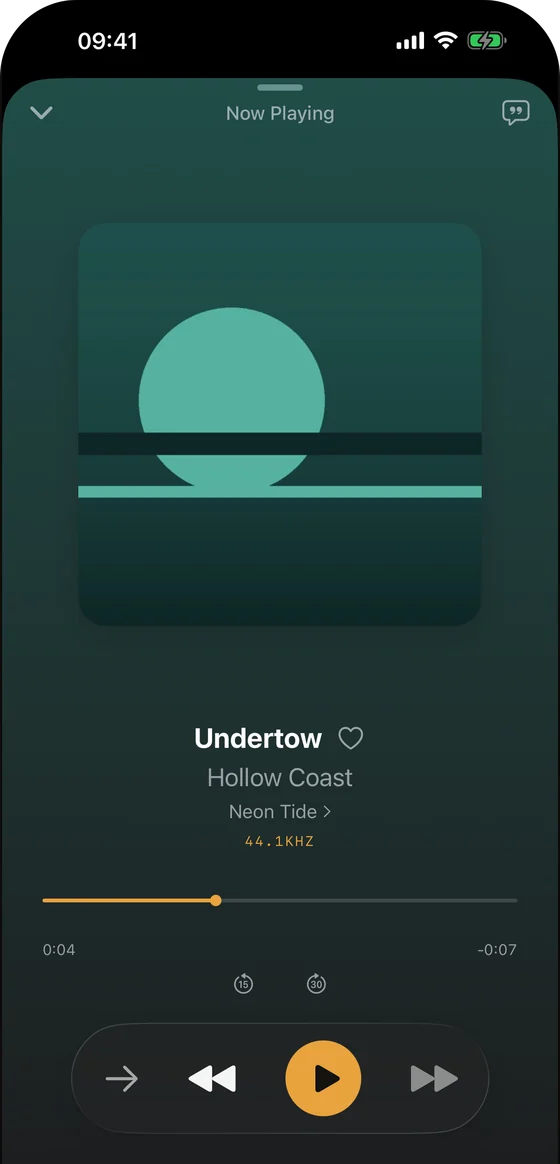
This is the itch Trove exists to scratch: a native SwiftUI player for Mac, iPhone and iPad that treats FLAC (and 15+ other formats) as first-class citizens, with gapless playback, synced lyrics and EQ. Local FLAC playback in Trove is free. It is on the App Store under one listing covering iOS 17+ and macOS 14+. One optional Pro purchase unlocks the paid features across your devices, but the app does not automatically sync your library between devices: import files or add your server separately on each. The Apple Watch app plays transferred songs offline, not a live NAS share.
Option 3: don't copy the files at all — stream them
If your FLAC library is big — and FLAC libraries get big — the 256 GB question is why all the files should live on the phone. A player that speaks WebDAV or SMB can access a reachable NAS or always-on computer. SMB and WebDAV network sources require Trove Pro; local FLAC playback remains free. For offline use, explicitly download the songs you need rather than relying on temporary stream prefetch. We wrote the full setup guide: how to play music from a NAS on iPhone.
Option 4: convert to ALAC and use Apple Music
Heresy in audiophile forums, perfectly rational in practice: FLAC → ALAC conversion is lossless to lossless — the decoded audio is bit-identical, nothing is thrown away. Convert with XLD, dBpoweramp or ffmpeg, import to the Music app, sync normally, done. The costs are workflow, not quality: you now maintain two copies (or abandon FLAC), long-haul metadata like embedded lyrics can need re-checking after conversion, and you've married the ecosystem. If you already live in Apple Music and just want your rips along for the ride, this is honestly fine.
Keep the tags and artwork worth playing
Half the pleasure of a lossless library is a clean library. Two free in-browser tools of ours help: Extract Album Art pulls the embedded cover out of any FLAC/MP3/M4A, and the ID3 Tag Editor inspects tags in supported formats and writes updated MP3 and FLAC copies. Both run entirely locally — your files never upload anywhere.
Which way should you pick?
A thirty-second decision guide for how to play FLAC on iPhone, by situation:
- One file, right now → tap it in the Files app and move on with your day.
- A modest library that fits on the phone → a dedicated FLAC player app, files copied locally. Most reliable on planes and subways.
- A big library on a NAS or always-on computer → a player that streams over WebDAV/SMB; the phone stays light and the library stays whole.
- You live inside Apple Music and want zero extra apps → convert to ALAC once, sync, done.
- You refuse to choose → the streaming route plus a synced offline slice of favorites covers both — which is precisely the shape Trove is built around.
FAQ: how to play FLAC on iPhone
Does FLAC sound better than ALAC or Apple Lossless? No — both are lossless; the decoded audio is identical. Format choice is about compatibility, not sound. Details: FLAC vs ALAC.
Why won't Apple Music import FLAC? Apple has never said, and after eight-plus years of OS-level FLAC support the omission is clearly policy, not capability. ALAC is the toll it charges at that particular gate.
Will I actually hear lossless over AirPods? Mostly no — Bluetooth re-compresses to AAC in transit, on AirPods Pro and Max alike. Lossless earns its bits over wired output, a USB-C DAC, or decent Wi-Fi speakers. Worth knowing before you re-rip your collection for the bus commute; Apple documents the fine print in its lossless audio notes.
Do FLAC files drain more battery? Slightly — bigger files, more decoding work — but on modern iPhones the difference is real-world negligible.
Can I AirDrop a FLAC to my iPhone? Yes — AirDrop from a Mac hands the file to Files (or straight to a player app that registers as a FLAC handler). It's the fastest way to get a single album across; for whole libraries, streaming or a proper sync beats dragging files one batch at a time.
Does the iPhone handle hi-res FLAC — 24-bit/96 kHz and up? Decoding, yes: hi-res FLAC files play fine in a capable app. Hearing every bit is the harder part — the built-in output resamples, so full hi-res playback wants a USB-C/Lightning DAC or wired headphones through one. Without that chain the file still plays, just delivered at the hardware's native rate — nothing breaks, you simply paid for headroom the speaker never uses.
Related guides & tools: WebDAV music player for iPhone and Mac · Swinsian alternatives for Mac · Free in your browser: Add Album Art to MP3 · LRC Maker
Try Trove on your own library
Trove plays FLAC, ALAC, APE and DSD on Mac, iPhone and iPad. With Pro, those devices can browse a NAS over WebDAV or SMB. Apple Watch plays transferred songs offline, not from the NAS. Free to download; Pro is one $9.99 purchase across your devices.