Play NAS Music on iPhone Without Plex
You can play music from a Synology or other network-attached storage (NAS) on iPhone without installing Plex or another music media server: Trove Pro connects to its SMB or WebDAV file share directly. The NAS still needs an enabled file share, an account allowed to read it, and a reachable network address. Trove's local-file playback is free; SMB and WebDAV network sources require the one-time Pro unlock. Browse and play while connected, then use Download to Library or Download All for songs you want offline. For CarPlay, those downloads must be in the iPhone's local library; the car screen does not browse the NAS. Here are the setup steps and limits.
This is a choice of connection method, not a claim that a NAS works without configuration or that a separate media server is always a bad fit. If you already prefer Plex for its own features, you can keep using it; Trove's direct file-share route is for people who do not need another music service in the middle.
Why the Files app alone isn't enough
iOS can mount your NAS out of the box: Files → the ••• menu → Connect to Server → smb://192.168.1.x (or your NAS hostname), log in, and your music folders appear. Tap a track and it plays.
That's genuinely useful — and it stops being useful about two songs later. The Files app has no play queue worth the name, no album or artist browsing, no gapless playback, spotty background behavior on big files, and it renders your carefully tagged library as… a folder of file names. It's a file manager doing a music player's job as a favor.
Use it to check that the connection works. Don't try to live in it.
Route 1: quick listen over SMB in Files
- On the NAS, make sure SMB is enabled (on Synology: Control Panel → File Services → SMB; QNAP and TrueNAS have equivalents).
- On the iPhone: Files → ••• → Connect to Server → enter
smb://plus the NAS IP or name. - Sign in with a NAS account that can read your music share.
- Browse to a track and tap it.
Limitations, so you're not surprised: playback stops being seamless between tracks, some formats hand off to a bare-bones preview player, and streaming large lossless files this way can stutter while Files buffers.
Route 2: a music player that speaks NAS
If you want more than a single file preview, use a player app that connects to the NAS file share. You add the server in the player, browse its folders, and play from the network; whether and how it indexes remote tags depends on the app and setup. This route needs the NAS's file service and access permissions, but no separately installed music media server.
Two protocols matter here:
- SMB — the same share Files uses. No extra music server if the NAS already serves files on your LAN, though you still need the correct share name and a permitted account. Simplest for home Wi-Fi listening.
- WebDAV — runs over HTTP(S). Away from home, use a reachable HTTPS endpoint with a trusted certificate or a VPN; Synology QuickConnect is not a WebDAV endpoint. On Synology install the WebDAV Server package. See what WebDAV means for a music library and Synology's connection checklist before exposing a service.
What to demand from the app itself: both protocols, real format coverage (FLAC/ALAC at minimum — see how to play FLAC on iPhone), gapless playback, and caching so a dropped Wi-Fi frame doesn't kill the song.
The available players differ in library views, network protocols, offline behavior and pricing. If you're comparing cloud-oriented apps, our Evermusic and Flacbox comparisons document their sources and App Store prices. Check a candidate's current official feature list for the protocol you need instead of assuming every music player connects to a NAS.
Trove is our SwiftUI player for Mac, iPhone, iPad and Apple Watch. The free app plays local files; Trove Pro is a one-time purchase that unlocks direct SMB and WebDAV sources on Mac and iPhone/iPad. Add the server separately on each device if you use both: the shared NAS files are not an automatically synced local library. See the Mac + iPhone setup and purchase boundaries, or download Trove from the App Store. The Apple Watch app plays music transferred to it offline with Pro; it does not browse or stream from a NAS.
Synology + Trove on iPhone: SMB at home
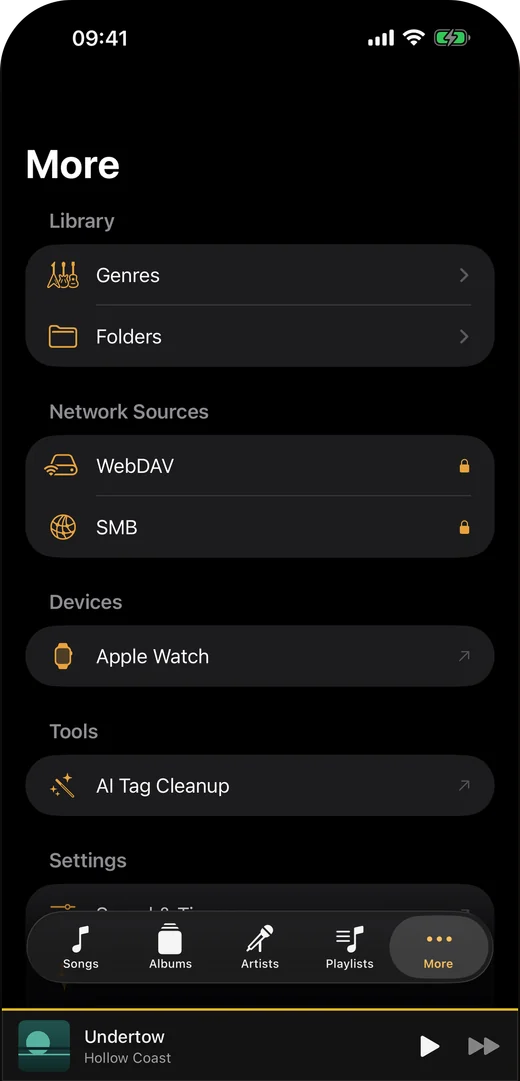
These Trove labels come from the iPhone app. The screenshot above shows the Network Sources entry. The form screenshots below show empty forms captured from Trove 1.6 in an iPhone simulator; they are not a successful NAS connection or proof that a particular server works.
- In Synology DSM, open Control Panel → File Services → SMB, enable the SMB service, and confirm that the NAS user can read the shared folder containing your music. Synology's SMB setup guide documents the service path and share permissions. Keep the iPhone on the same local network for this first connection.
- Unlock Trove Pro if the SMB row is padlocked. On iPhone, open More → Network Sources → SMB, tap Add, and fill in the Add SMB form. Name is any label you recognize; Address (192.168.1.10) takes the NAS host or IP address without
smb://; Share name (e.g. Music) is the DSM shared-folder name, not/volume1/musicor a full file path. Enter Username and Password for the NAS account (or leave them blank only if you intentionally enabled guest access), then tap Save.
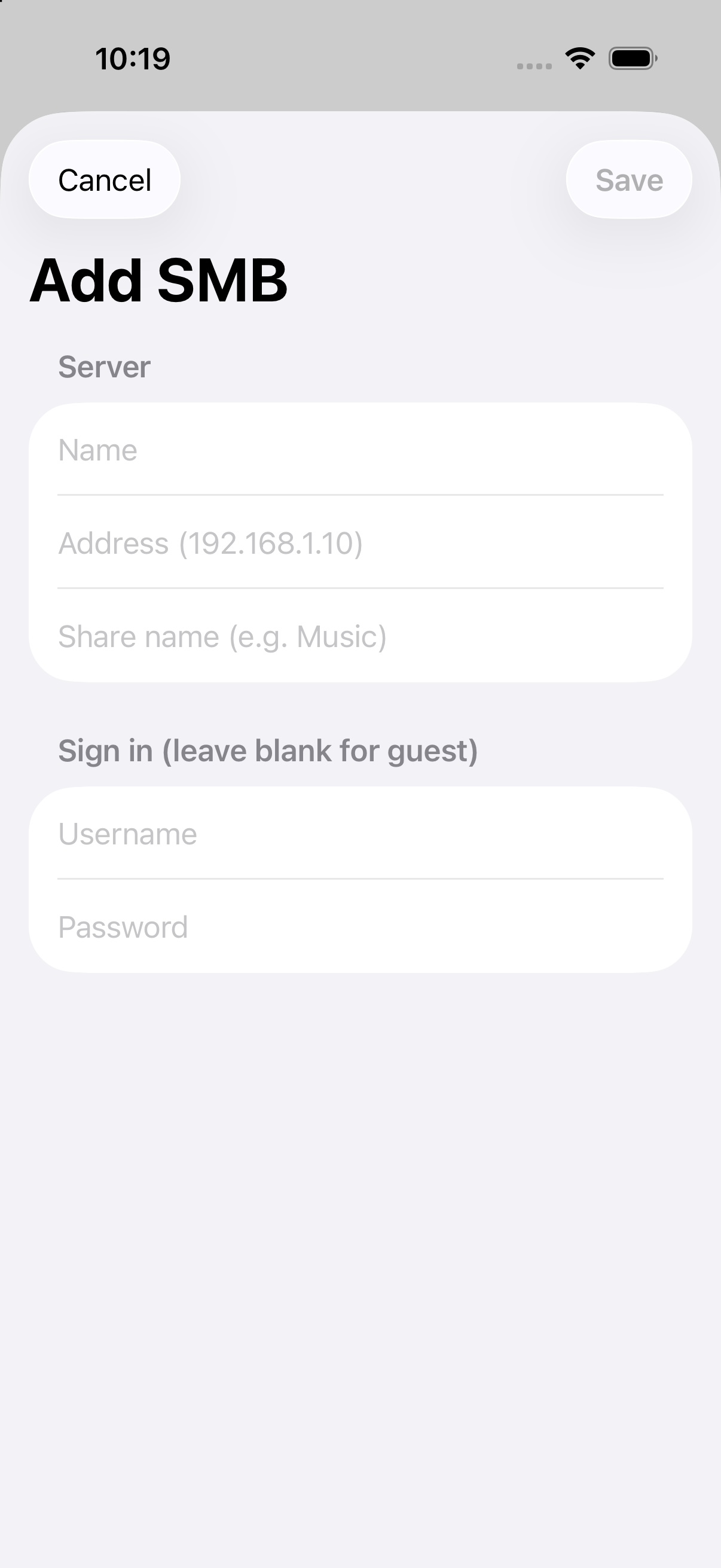
The actual Add SMB form before any server details are entered. It does not show a tested connection.
- Open the saved SMB server and browse to the music folder. Tap a song to start network playback. A brief download for playback is not an offline copy: for a file you want to keep on the phone, use its Download to Library context-menu action. Inside a folder, Download All is available in the toolbar; confirm the downloads have finished and the songs appear in your local library before going offline.
On iPad, the same network entries are in the sidebar's Network Sources section rather than the iPhone's More tab. On Mac, Trove exposes network connection through the desktop menu/settings instead of the iPhone tab. The App Store listing and Pro entitlement are shared, but you still add the NAS connection on each device.
Optional: connect to Synology WebDAV
For a WebDAV setup, install and enable Synology's WebDAV Server package. Synology documents port 5006 for HTTPS (and 5005 for HTTP) in its connection guide. Prefer a trusted HTTPS certificate; do not expose an unencrypted NAS login to the internet.
In Trove Pro on iPhone, open More → Network Sources → WebDAV → Add. The Add WebDAV form asks for Address (https://…), for example https://your-nas.example:5006, and an optional Path (e.g. /music, optional) if you want to start at a particular shared folder. Enter Username and Password, use Test Connection, then Save. The app has an Allow self-signed certificate switch for a server you trust; do not use it to dismiss an unexpected certificate warning. Once connected, browse and tap a song, or use Download to Library / Download All for a true offline copy. Synology notes that QuickConnect addresses are not WebDAV endpoints; use a reachable IP or DNS name instead.
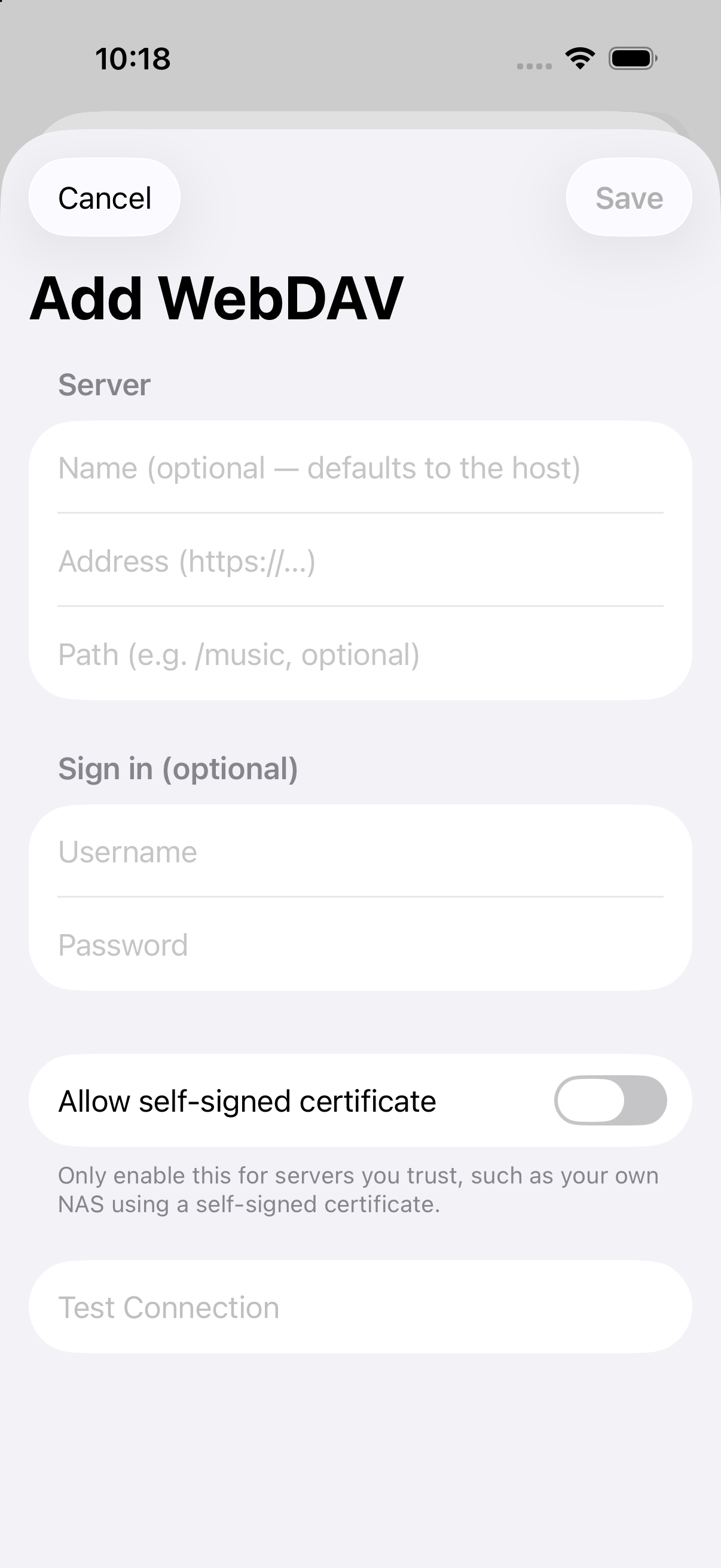
The actual Add WebDAV form before any server details are entered. Test Connection is disabled; this is not a successful NAS test.
Route 3: skip streaming, sync the files
If your library fits on the phone (or a favorites subset does), copying files across and playing them locally is reliable on the subway or a flight. Trove's Download to Library is one way to make an explicit offline copy from a connected NAS; Wi-Fi transfer or Files import are free alternatives for files you already have elsewhere. The cost is curation: you maintain what's-on-the-phone. Temporary network prefetch alone is not an offline library.
What changed for NAS libraries in 1.9?
Trove 1.9 is available on both the US iOS and Mac App Stores, checked October 20, 2026; both platform histories date it October 17. With Pro, 1.9 adds recovery for temporary SMB scan disconnections and targeted timeout/handle-cleanup stability fixes. On iPhone and iPad, a scan can save a background checkpoint and continue when you return to the app. This does not promise uninterrupted background scanning or fix server permissions.
For WebDAV, 1.9 adds explicit folder indexing and recursive search. Indexing makes remote tracks available in the library while connected; it is not an offline copy. Read the WebDAV indexing steps and download distinction before using the new workflow. Google Drive and MEGA are not included in 1.9. Google Drive selection and MEGA playback shipped in 2.0 with Pro. A separate check of the US iOS and Mac App Store histories on October 27, 2026 confirms 2.2 on both platforms. Drive uses an explicit file picker, not whole-drive folder browsing. Trove still does not connect directly to Dropbox, OneDrive, Box, Yandex or FTP and does not provide cloud storage.
The same update adds free local subfolder search, Favorites sorting, safe source-path copying and reference-pitch presets. See the released 1.9 changes and platform boundaries. The explicit offline CarPlay and Watch steps below continue to apply.
Offline CarPlay: download NAS songs first
For an offline CarPlay trip, save the music on the iPhone before you leave. Trove's CarPlay interface is free and presents Playlists, Albums, Artists and Songs from the phone's library. It does not browse the NAS share or manage its connections. An indexed remote song is not proof that its audio is stored locally.
- Connect on the phone. While your source is reachable, open its SMB or WebDAV connection in Trove Pro, using the fields above. A successful connection lets you browse; it does not download your library automatically.
- Choose an explicit download. Press and hold a track and choose Download to Library, or use Download All for the files in the current folder. This is not a promise to download every nested folder or keep the folder synchronized. A file temporarily fetched for network playback is not the same as a persistent local copy.
- Confirm the local copy. Wait for the download to finish, then find the song in the iPhone's local library. An item visible only in a network browser or remote index is not enough. Before a trip, try a downloaded song with the source unavailable; choose one you have not just streamed if you want to rule out a warm playback cache.
- Open Trove in CarPlay. When safely parked, connect the iPhone to your CarPlay system and open Trove on the car screen. Choose Songs for individual tracks, or browse Albums, Artists or Playlists. These are library lists, not NAS folders. If your downloaded music is missing, check Songs and confirm the local copy on the iPhone first.
- Choose a song and check Now Playing. Selecting a song opens Now Playing. Before setting off, check that the title is correct, playback progresses, and pause/resume works. Use next/previous when the queue contains other songs; Up Next shows the remaining queue.
- Keep the car connection. With wireless CarPlay, keep its required Wi-Fi/Bluetooth connection. Making your home NAS unreachable is different from disconnecting the car. Vehicle audio routing and compatibility depend on the actual setup.
If the song is missing or will not play offline: keep the source reachable and check that the explicit download completed without an error. Find it in the local library, not just the indexed remote results, and retry the download if needed. A failed or incomplete download, remote-only entry or recently streamed cache is not a confirmed offline file. A connection failure belongs to the source setup checks below; downloading cannot fix an unreachable server.
Local import through Files or free Wi-Fi transfer is another route when you do not use Pro network sources. Follow the first-song import guide or Mac + iPhone setup. The Mac and iPhone libraries remain separate; a shared Pro purchase does not copy audio between them.
Offline Apple Watch: transfer songs before a phone-free run
The Watch is a separate offline destination, not a miniature NAS browser. It does not browse or connect to the NAS, and buying Pro does not automatically copy your iPhone library to it.
- Put the songs in Trove's local iPhone library first. For NAS music, connect the source with Trove Pro, use Download to Library (or Download All inside a folder), and wait for the local copy. Files import and Wi-Fi transfer can add local files without NAS, but sending them to Watch still requires Pro.
- Pair the Apple Watch and install Trove on it. On the iPhone, open More → Apple Watch, choose Add Songs, select local songs, and tap Send. Alternatively, press and hold one local song and choose Send to Watch. Both transfer routes require Trove Pro.
- Check the transfer queue, then confirm the songs under On your watch before leaving the phone behind. A queued file is not yet an offline copy on the Watch; transfer timing depends on the devices being available. Open Trove on the Watch and play a transferred song without the iPhone to check your own setup.
For offline CarPlay, the downloaded audio stays on the iPhone. The Watch instead needs an explicit transfer and keeps its own copies. Neither screen manages the NAS share.
For prerequisites, transfer confirmation and troubleshooting, see the full Apple Watch offline music guide.
NAS-side checklist before you blame the app
- Enable the protocol you plan to use (SMB service, or the WebDAV package — on Synology, WebDAV defaults to ports 5005/HTTP and 5006/HTTPS).
- Use HTTPS for WebDAV if you'll ever connect from outside your LAN.
- Create a read-only account for music playback — players don't need write access to your archive.
- Check the share name and path: Trove's SMB form wants the DSM shared-folder name, while WebDAV accepts an optional path. Neither wants a Synology filesystem path such as
/volume1/musicin the SMB Share name field. - On the phone, test one lossless track over your actual Wi-Fi before indexing a large library. Over cellular, check the app's caching behavior and your data plan before playing a Hi-Res folder.
If Trove shows Couldn't load, try Try Again after checking that the phone and NAS can reach one another, the SMB share name is exact, and the account can read that share. For WebDAV, run the form's Test Connection and read its failure message. Synology's WebDAV troubleshooting checklist covers service enablement, port 5006, account permissions, DNS/NAT loopback and certificate mismatch. A QuickConnect name is not a WebDAV address. Do not “fix” a remote connection by turning off HTTPS or broadly opening your NAS to the internet; use a correctly configured trusted endpoint or VPN.
Trove 1.6 improves SMB indexing after a permission-denied file: it continues past that file and lets you retry. That does not override NAS permissions or repair an unreachable share, so keep the checks above if a real server still fails.
FAQ: play music from a NAS on iPhone
Can the iPhone play FLAC from a NAS natively? The OS can decode FLAC, and Files will play one when tapped — but "natively like a music library" requires a player app. Full rundown: how to play FLAC on iPhone.
WebDAV or SMB — which should I use? On home Wi-Fi, SMB, because it's already on. For remote access, WebDAV over HTTPS is the cleaner, firewall-friendlier choice.
Does streaming from a NAS work over cellular? Technically yes via WebDAV (or a VPN back home). Practically, you want an app that caches aggressively, and a data plan that forgives lossless bitrates.
Do I need Plex or a separate music media server? Not for Trove's SMB/WebDAV route. The NAS must still serve the files, allow your account to read them, and be reachable from the phone. Plex and other media servers offer different library and remote-access features; choose one if you need them. Direct file access avoids installing that extra service, but it does not configure your NAS or remote network for you.
Does the same setup work on iPad and CarPlay? iPad: yes — the Files-app route and every WebDAV/SMB player route work identically there, and the bigger screen actually makes library browsing nicer. CarPlay: that depends on the player app exposing a CarPlay interface; the OS-level Files trick doesn't carry into the car, so check for CarPlay support when you pick your app. Also check what the car screen shows — a live view of the share, or only the songs you have already downloaded. Trove has offered a free CarPlay interface since version 1.2. Songs explicitly downloaded from the NAS can appear under playlists, albums, artists and songs; manage the source on the phone and confirm local copies for offline use.
What format should the music on the NAS be in? Whatever you already have — that's the point of picking a capable player. FLAC is the common denominator for ripped collections; if yours is FLAC, see how to play FLAC on iPhone for the full format story, and FLAC vs ALAC if you're deciding what to rip into going forward.
Related guides & tools: WebDAV music player for iPhone and Mac (the protocol side, in depth) · Swinsian alternatives for Mac · Free in your browser: Album Art Finder · LRC Maker
Evidence and a reproducible offline check
Developer-reported check, 27 October 2026: Trove’s developer reports successful playback and seeking after downloading music, disabling the network and reopening Trove: iPhone 15 Pro, iOS 27.0.1, Trove 2.1, self-built x86 TrueNAS over SMB. This is a text report, without a recording or original logs supplied for this guide. It has not been independently reproduced and does not establish WebDAV, every format, or CarPlay compatibility.
CarPlay simulator check, 27 October 2026: we tested a Trove 2.1 source build (build 202610231046) on one iPhone 16 Pro simulator running iOS 26.5, using the classic Simulator from Xcode 26.6. We imported two 90-second synthetic FLAC tracks through free Wi-Fi Transfer. The Playlists, Albums, Artists and Songs entries opened; Playlists showed an empty Favorites list. Selecting a song opened Now Playing with the correct title. Progress advanced, held steady while paused, continued after resume, and reset when Next selected the second song. Up Next showed that second song before the switch.
After closing the transfer service and making the original upload files unavailable at their staging paths, we restarted Trove: both local copies remained and played again in CarPlay. The virtual CarPlay display needed a disconnect/reconnect after the forced App restart; recovery without reconnecting was not verified.
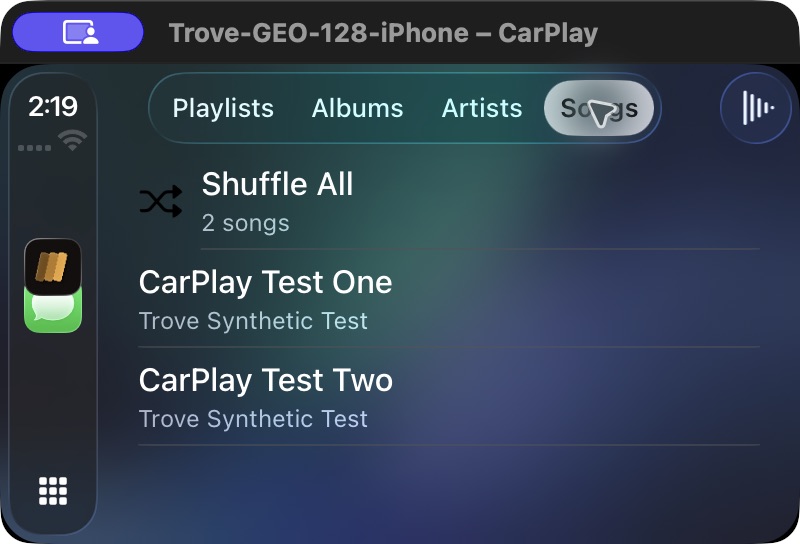
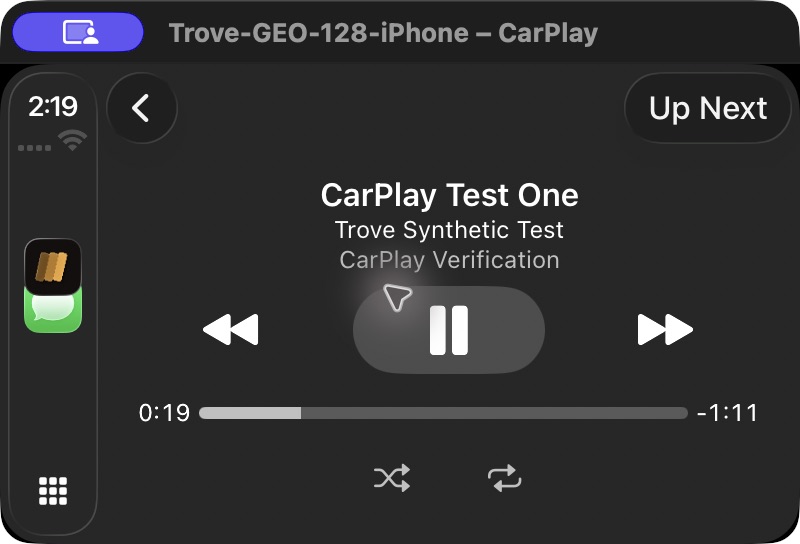
Genuine simulator captures of the English interface and synthetic test tracks. They show local-library CarPlay playback, not a NAS download.
Limits of this check: the recordings contain video only; they do not establish audible output. This was a local-import test, not an independently reproduced SMB/WebDAV download workflow or the downloaded App Store binary. Physical vehicle compatibility, USB/Bluetooth audio routing, steering-wheel controls and Watch playback were not tested. The Trove 1.6 empty NAS forms above remain setup examples, not successful connection captures.
A separate local WebDAV transport check ran on macOS 26.6.2 using a repository test server listening only on the same computer. It was not a Synology or physical NAS, not a remote internet connection, and not an iPhone or Trove playback test. The client received 401 without authentication, 207 for an authenticated directory listing and 200 for a FLAC download. The downloaded bytes matched the original. With that server stopped, the local file still decoded in an independent audio tool; this does not demonstrate Trove's offline library or a cache policy.
You can download the synthetic FLAC test tone to repeat your own check. It is an intentionally generated 4-second, 440 Hz tone, 44.1 kHz mono, with no private music or account data. It is not a recording from a Trove playback session. Start at low volume. SHA-256: 12c884bd391a9964b242556125098838577254efa0eab5d3a1458b54d1fab64a.
| Trove-on-iPhone step | Evidence for this guide |
|---|---|
| Connect to a real NAS | Developer reports SMB on TrueNAS; not independently reproduced |
| Browse its music directory | No separate step-by-step capture supplied |
| Play the test FLAC from the source | Not tested in Trove |
| Download to Library / Download All | Developer reports a completed download; exact control not recorded |
| Confirm a persistent local-library copy | Developer reports playback after network disable and App restart; not independently reproduced |
| Play that copy with the source unavailable | Developer reports playback and seeking without errors; SMB setup above only |
| Open CarPlay / browse / select / progress / pause-resume / next track | Verified with two locally imported synthetic FLAC tracks in the simulator; Up Next checked |
| Keep imported local files after restarting Trove | Verified with transfer closed and original upload paths unavailable; virtual CarPlay display reconnected before replay |
To repeat the offline check on your own setup, use an authorized NAS and one album or the sample above. Record your iPhone model, OS, Trove version, SMB/WebDAV and LAN/remote conditions. Follow the existing steps, wait for the explicit download, then find the song in the local library. Make the source unreachable and play it there, rather than relying on a recently streamed song. Record each result and any error. Keep this phone check separate from CarPlay and Watch testing.
Try Trove on your own library
Trove plays FLAC, ALAC, APE and DSD on Mac, iPhone and iPad. With Pro, those devices can browse a NAS over WebDAV or SMB. Apple Watch plays transferred songs offline, not from the NAS. Free to download; Pro is one $9.99 purchase across your devices.