Apple Watch Offline Music Without iPhone
You can listen to your own music on Apple Watch without carrying your iPhone after the songs have been transferred to the Watch. In Trove, start with music in the iPhone’s local library, send selected songs with Trove Pro, confirm delivery, then play them in Trove on the Watch. The Watch does not browse or stream directly from your NAS. Buying Pro does not automatically copy your music library.
What you need first
Use an iPhone paired with an Apple Watch and install Trove on both. The published 1.9 source configuration requires iOS 17+ and watchOS 10+; pairing compatibility also depends on your devices and OS versions. This guide was checked against the 1.9 source on 21 October 2026, when the US public download returned 1.9. The separate 2.0 cloud additions are not required for this workflow. A separate US iOS and Mac App Store check on 27 October 2026 confirms 2.2 on both platforms; the original source-check scope remains 1.9.
Local playback and importing your own files through Files or Wi-Fi transfer are free. Sending music to Watch requires Pro: US$9.99 once in the US storefront, not a subscription. One purchase covers supported Apple devices on the same Apple Account; each device still has its own music library. See pricing and the feature list.
1. Put songs in the iPhone’s local library
Import audio files you already own through Files or Wi-Fi transfer. A NAS is optional. If starting from SMB/WebDAV, connect the source with Pro and choose Download to Library, or Download All inside a folder. Wait for completion and find the songs in the local library. A remote index entry or a temporary file fetched for streaming is not the same thing. The NAS walkthrough explains connection fields and offline-copy checks.
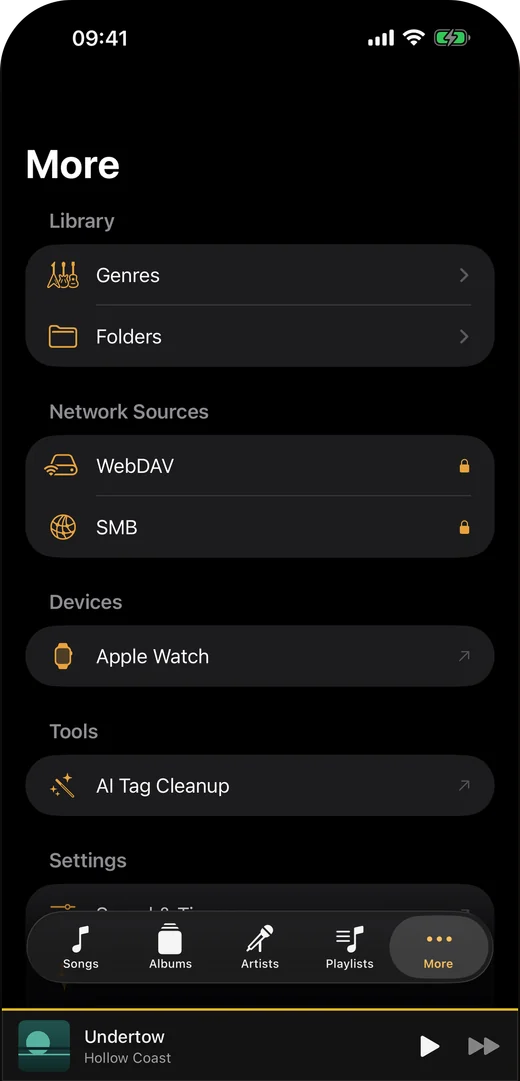
Existing genuine iPhone navigation screenshot, reused from the NAS guide. It shows where to find Apple Watch; it does not show a completed transfer or independent Watch playback. Translated screenshots were captured from a Trove 2.0 review build before its public release; they illustrate navigation, not a completed transfer or the latest 2.2 interface.
2. Select and send local songs
- On iPhone, open More → Apple Watch. If the app is missing on the Watch, use the iPhone’s Watch app to install Trove there and check pairing.
- Choose Add Songs. This picker lists local songs; remote-only tracks must be downloaded first.
- Select a small test set and tap Send (the button includes the number selected). You can also press and hold one local song and choose Send to Watch. Both routes require Pro.
- Keep the devices available and follow the connection tips in the app. Transfers are scheduled by the system; a queued item is not yet a song stored on the Watch. No fixed transfer time is promised.
3. Confirm the songs arrived
On the iPhone’s Apple Watch screen, inspect the queue and On your watch inventory. Then open Trove on the Watch and check that the song is in its own list. If the inventory has not refreshed or the file is still waiting, keep the iPhone with you and resolve the transfer first. An empty queue alone does not prove a particular song arrived.
4. Test phone-free playback before leaving
On the Watch, select a transferred song in Trove’s list and start playback. Check the Watch’s audio output, using paired Bluetooth headphones if needed for your device. To verify independent playback, make the iPhone and NAS unavailable for this test and start the already-transferred song from the Watch itself. A phone remote-control screen or a song still playing on iPhone is not that test. Restore your normal connections afterwards.
Start with a short file and test the formats you actually use. The iPhone’s full extended-format support does not establish that every file or output mode works on Watch. Available space, device condition and system scheduling affect what you can transfer; this guide promises no library capacity, transfer speed or audio-quality equivalence.
If a step does not work
- No paired Watch / app not installed: check the iPhone’s Watch app, install Trove on the paired Watch and reopen the connection screen.
- Add Songs is disabled: wait for the Watch connection to become available and check the in-app status. Check Pro if a transfer action is locked.
- Song missing from the picker: confirm it is a completed local-library copy, not only a NAS search/index result.
- Waiting or failed transfer: keep both devices available, read the queue status and in-app tips, and retry a small selection. Do not infer success from the send button.
- Song appears but no sound: check the Watch’s chosen output and volume, and try a known working short file. Pairing and transfer success do not prove decoder or audio-route success.
For app-specific help, see FAQ and support. CarPlay uses the iPhone’s on-device library; it does not replace this Watch transfer step.
FAQ
Can the Watch play without my phone? That is the intended local-playback workflow once a compatible song has arrived on the Watch. Confirm it with the phone unavailable before relying on it. This guide does not claim a physical-device test was completed.
Do I need a subscription? No Trove subscription. Local playback/import is free; sending songs to Watch needs the one-time Pro unlock. Apple device and OS compatibility still apply.
Where can the music come from? Your local audio files imported through Files or Wi-Fi; or NAS files explicitly downloaded to the iPhone with Pro before transfer. Trove does not supply a music catalog.
How do I know transfer finished? Check the named song under On your watch and in Trove’s own Watch list, then test playback there. Queueing a file is insufficient.
Why can’t I stream directly from the NAS? Trove’s Watch app plays transferred local files. NAS browsing/streaming is on iPhone, iPad or Mac with Pro, with sources configured separately; shared purchase does not create automatic library sync.
What has actually been checked
The labels, local-only picker, transfer queue and Watch file-playback path were inspected in the published 1.9 source. This is source verification, not a new simulator transfer demo or physical Watch result. No physical paired-Watch, phone-free playback, format matrix or battery test was completed for this guide. The existing screenshot is navigation evidence only. The earlier NAS guide already contained a short Watch flow; this page expands it with prerequisites, confirmation, troubleshooting and these evidence limits.
Download Trove on the App Store and try a small selection with your own devices before planning a phone-free trip.
Try Trove on your own library
Trove plays FLAC, ALAC, APE and DSD on Mac, iPhone and iPad. With Pro, those devices can browse a NAS over WebDAV or SMB. Apple Watch plays transferred songs offline, not from the NAS. Free to download; Pro is one $9.99 purchase across your devices.